Article
How to build your app with an AI agent, one screen at a time
An AI coding agent will tell you your app is done. Then you open it on your phone, and it isn't. That is not the AI being broken. It is how these tools work, and once you build around it, making an app gets a lot calmer.

Watch the episode: The AI Said "Done." The App Didn't Work. Here's Why.
This is the part of the process where the app actually gets built. If you have followed along, you have a plan and a project file for the agent. Here is how I go from that to a working app on my iPhone without the whole thing falling apart halfway through: the order I build in, two habits, and the undo button that has saved more of my apps than anything else.
Don't ask for the whole app at once
The mistake is to hand the agent your plan and say "build the app." You will get something, and it will be fifty things at once, and when one of them is wrong you will not know which. Build in this order instead.
The build order
- 1One screen, with real dataA single screen on your phone that shows one real piece of information. That's it.
- 2The next screenAdd it. Run it.
- 3Save, close, reopenAdd the part that saves your data. Run it, close the app all the way, open it again, and check the data is still there.
- 4Repeat until your sentence is trueKeep going until "this app helps [who] do [what]" is true, on your phone.
It feels slower. It is faster. When something breaks, you know it was the last thing you added, not one of fifty.
The sentence in step 4 is the one-sentence test from picking your idea. It is also your finish line: when that sentence is true on your phone, you have a first version.
Test on a real iPhone, from the first week
Run the app on your own iPhone early. The first week, not the last. The simulator on your Mac is useful, but it can mislead you about speed, about how big the text really is, and about what happens when a call comes in. Plug your phone in and run it there.
Build with the current version of Xcode. Ask the agent to do it from the start. As of October 2026, Apple has a foldable iPhone. An app built with the current tools fills its big inner screen; one built with an older Xcode runs with black borders around it. So build for it from day one, and check the unfolded layout as you go.
Apple's device and screenshot rules change. Check Apple's current requirements before you submit. Everything here is as of October 2026.
Two habits that save you weeks
1. Run the app yourself after every single change. Not at the end of the night. Every change. When the agent says "done," it usually means the code compiles. That is not the same as working. That gap is the whole reason an agent can say "done" about an app that doesn't work.
2. Describe problems like a user would, and show them. Compare these two:
- Hard to act on: "The save is broken."
- Easy to fix: "When I tap Save on an empty row, the app closes."
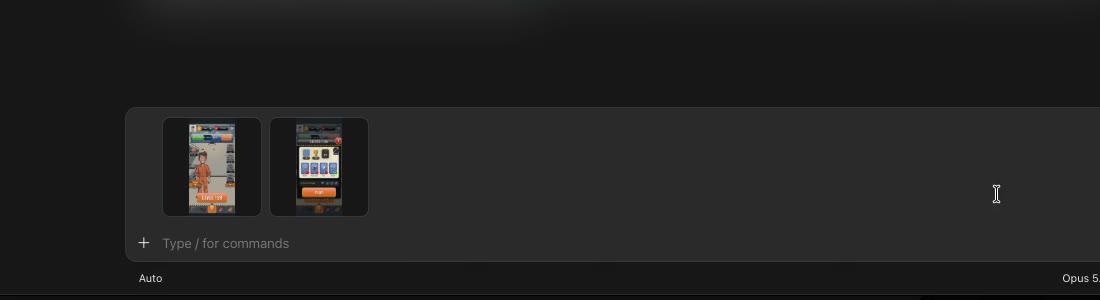
Then send a picture. A screenshot settles in one shot what a paragraph can't. On an iPhone, press the side button and volume up together, AirDrop the screenshot to your Mac, and drag it into the agent's chat. If the problem happens over a few taps, record your screen and send that, or send the two or three screenshots that show it. One way or another, get the information to the agent visually.
Version control: your save points
If you take one technical habit from this whole series, take this one.
Version control works like save points in a game. Every time you commit, you make a snapshot of your whole app, with a note saying what changed, and you can go back to any of them.
It matters more with an agent than it ever did for people writing code by hand. When you write code yourself, you change a few lines at a time. An agent can change twenty files in one answer, and some of those changes will be wrong. Without save points, one bad answer can wreck an app that worked an hour ago. With save points, going back takes about ten seconds.
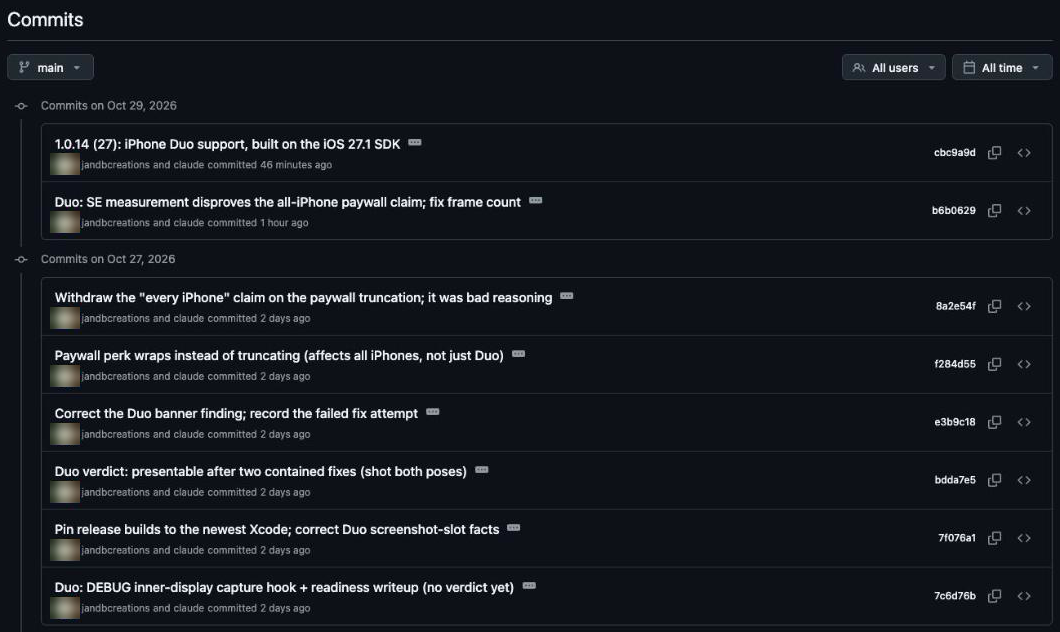
You don't type any of it. Connect your Mac to GitHub once, which takes a few minutes. After that you just say it: "Commit this." "Push it." "Go back to this morning's version." The agent runs the commands.
Two things stay your job:
- You decide when to commit. The agent can't tell which version was the good one. Only you know, because only you ran it on your phone. When it works, say "commit this." If you never say it, there is nothing to go back to.
- You keep your secrets out. If you paste a key or password into the chat, the agent will happily save it with everything else. Keep the repository private, always, and ask the agent to set up the ignore file that blocks keys before the very first save.
And push before you close the laptop. A save point that only lives on your Mac is gone the day the Mac dies. My rule: it's not done until it's pushed.
When the agent gets stuck in a loop
At some point the agent will fix one thing and break another, over and over. Stop. Don't argue with it for an hour. Either start a fresh conversation and describe what you want from scratch, or go back to the last save point that worked. Going backwards is almost always faster than pushing forward through a mess. That is exactly what the save points are for.
The short version
- 1One screen at a time
- 2On your real iPhone
- 3Run it after every change
- 4Show the agent what's wrong
- 5Commit every time it works
Do that until your sentence is true, and you have an app. Next in the series: privacy, the part that gets most first apps rejected.
The checklist I run before every submission
Every check on it comes from a real submission, and most of them from a rejection I had to fix. It's free.